
Getting started
Install. Start. Pair.
All docs
Start
Use
Troubleshoot
Understand
Contribute
Use two Apple silicon systems running macOS 26 or later, on the same network.
Install
Download Daisy, open the DMG and drag Daisy into Applications on both systems. You can also install with Homebrew.
Start
Open Daisy on both systems. Follow its walkthrough to allow Accessibility and Input Monitoring in System Settings. Click Reopen Daisy if prompted, then Start Sharing on both.
Input goes only to paired systems, encrypted in transit. Manage trust explains the access pairing grants.
Pair
One system shows a six-digit code. Enter it on the other and click Connect. The window title becomes Connected. Daisy reconnects automatically while both systems are sharing and still trust each other.
Make your first crossing
Drag the peer’s displays in Daisy to match your desk. Move the pointer off a display toward the peer’s display; your keyboard follows it. Cross back to return.
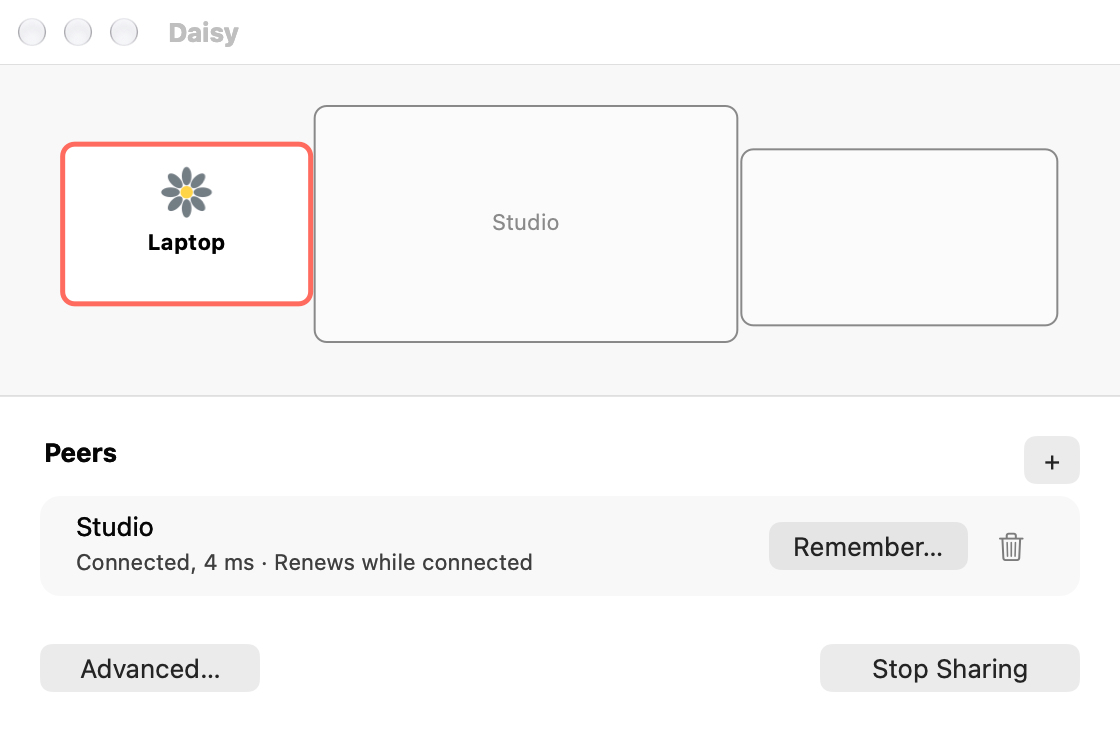
To take control back immediately, press Control-Option-Command-Escape on the system you are at.
If setup stalls
- Systems keep looking: try a direct address.
- Permissions remain denied: reopen the permission walkthrough.
- A new peer is refused: open pairing on a group member.
After your first crossing, use the task index to find other things you can do.